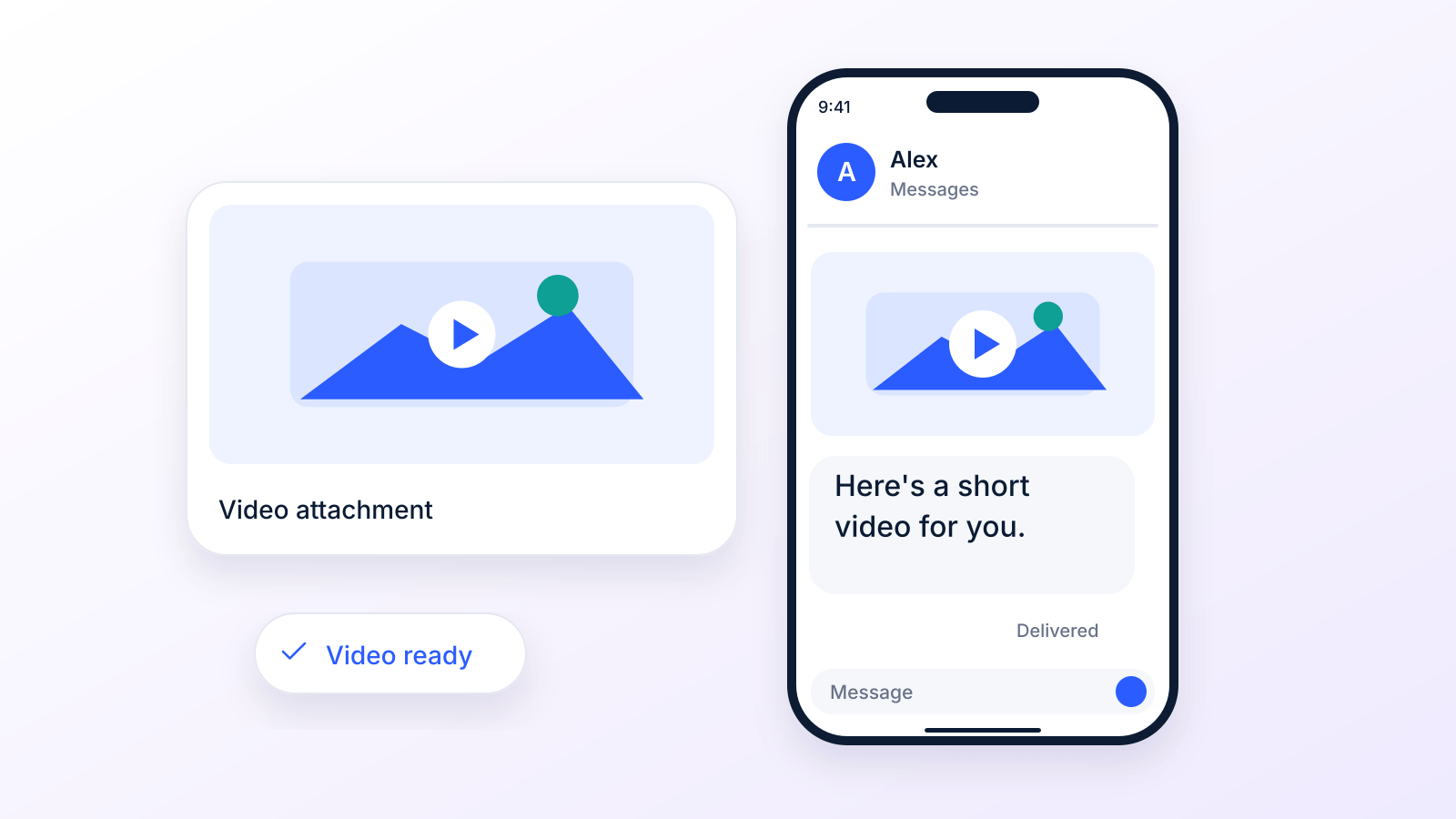
Figuring out how to send a video through text is pretty simple once you know your two main options. For short, quick clips, you can send the video file directly in your messaging app: between iPhones it goes by iMessage, with RCS turned on it goes in high resolution, and otherwise it travels as an MMS (Multimedia Messaging Service) message. But for anything longer or higher quality, you'll want to upload it and just share a link.
Let's break down why this matters.
Why You Need to Get Video Texting Right
Sending a video isn't just for sharing clips of your dog doing something funny anymore. It's become a seriously powerful tool for business. Plain text can feel a bit flat, but a video? It can show emotion, demo a product, or deliver a personal message that really lands.
But here's where most people get stuck. They hit "send" on a video and run into a frustrating roadblock: the send fails, or the video arrives looking like a pixelated mess from 1998.
This happens when the video travels as MMS, because mobile carriers put strict limits on MMS file sizes: AT&T delivers picture and video messages of up to 1 MB and Verizon lists 3.5 MB for video. Anything bigger gets squashed down so much it's hard to watch, or it just won't go through at all.
MMS vs. Link: How to Choose
The trick is to match your sending method to your video. Got a quick, 10-second "hello" video? MMS will probably handle that just fine. Trying to send a detailed, 2-minute product demo? A link is the only way to make sure your recipient sees it in full, crystal-clear quality.
This decision tree breaks it down for you.
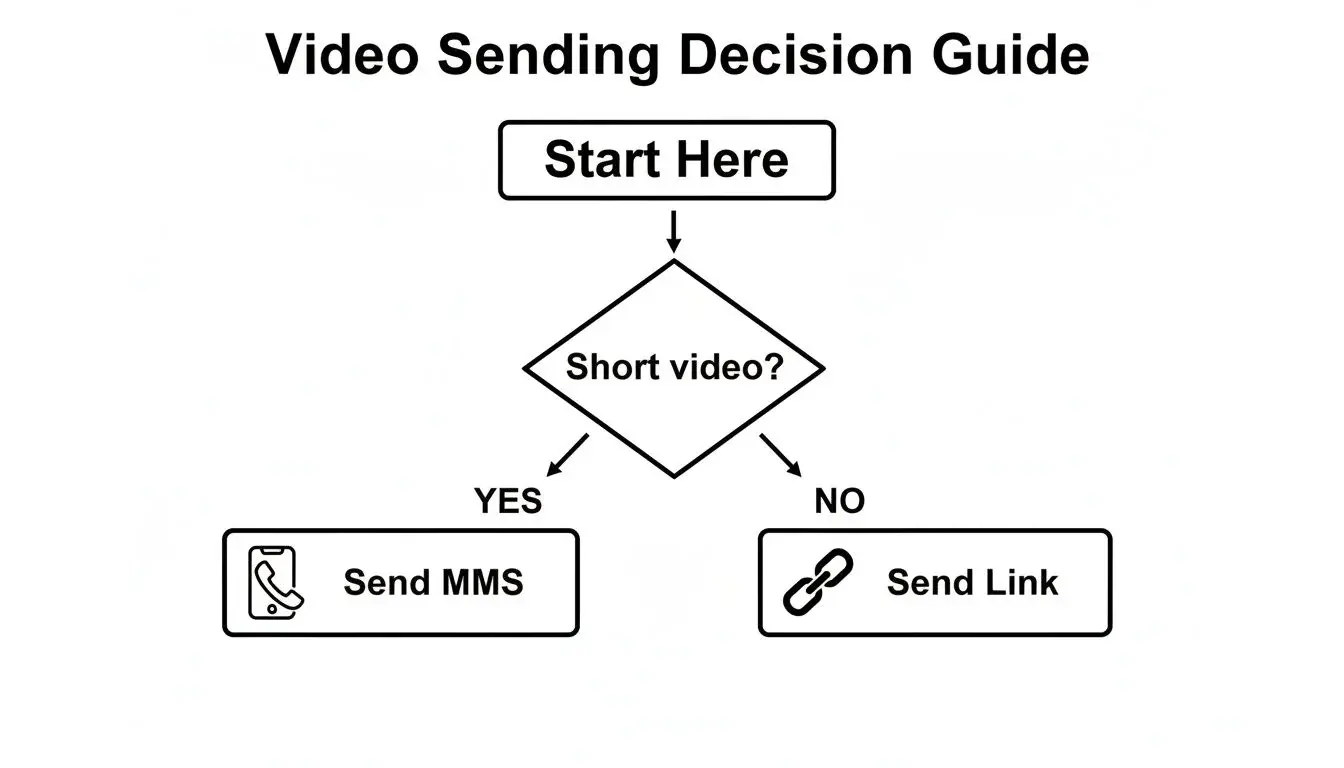
As you can see, it really boils down to the length and quality of your video. For anything substantial, sending a link is the way to go.
Here's a quick table to make the choice even clearer.
MMS vs Link Sending at a Glance
This table offers a side-by-side look at the two main methods for sending videos via text, helping you decide which is best for your specific situation.
| Feature | MMS (Direct Send) | Link to Video (Cloud Host) |
|---|---|---|
| Best For | Very short clips (under 15-20 seconds), informal chats | Longer videos, high-quality demos, marketing campaigns |
| File Size Limit | Strict and carrier dependent: 1 MB at AT&T, 3.5 MB for video at Verizon, often 300 to 600 KB between carriers | Depends on the hosting service, not the carrier |
| Video Quality | Heavily compressed, often pixelated or blurry | Preserves original HD quality |
| User Experience | Plays directly in the messaging app | Requires one click to open in a browser or app |
| Tracking/Analytics | None | Can track views, engagement, and click-through rates |
| Delivery Issues | High risk of failure with larger files | Very reliable, as only a small text link is sent |
Ultimately, for personal use, MMS is convenient for tiny clips. For any professional or marketing purpose where quality and analytics matter, sending a link is the clear winner.
For any kind of business communication, sending a tracked link is almost always the better play. It avoids MMS size failures, keeps the original video quality, and gives you valuable data on who's actually watching your content.
And if you're sending a lot of messages for your business, you should check out how you can send texts from your computer to make the whole process way more efficient.
This guide will walk you through all the steps, from simple personal sharing to advanced business strategies using these methods.
How Long Can a Video Be to Send Through Text?
There is no limit in seconds. Carriers and apps limit the file size, so how long your video can be depends on its resolution and how much the phone compresses it. A short 4K clip can be bigger than a long low-resolution one. Here are the published limits:
| Service | Video limit | What happens above it | Source |
|---|---|---|---|
| MMS on AT&T | 1 MB (picture, video or audio) | Larger attachments are compressed to stay under 1 MB | AT&T |
| MMS on Verizon (4G LTE, 5G) | 3.5 MB video (1.2 MB image) | A message over the other carrier's limit may be rejected; limits between carriers are typically 300 to 600 KB | Verizon |
| MMS on T-Mobile | Not published on a T-Mobile page we could check; listed at 1 MB by a messaging provider | Compressed or rejected | OpenMarket (third party) |
| iMessage (iPhone to iPhone) | No published limit; sends "high resolution photos and videos" | Apple notes iPhone may compress attachments when necessary | Apple |
| RCS (iPhone with iOS 18+, Android) | No published consumer limit; sends "high resolution photos and videos" | Google Messages lets you pick HD or HD+ (original quality) | Apple, Google |
| Files up to 2 GB | Use a link or another method | ||
| Telegram | Files up to 2 GB (4 GB with Premium) | Use a link or another method | Telegram |
| Mail Drop (iPhone Mail) | Up to 5 GB; recipient has 30 days to download | Use a cloud link | Apple |
The practical reading: if both phones support iMessage or RCS, a normal phone video usually goes through in high resolution. If the conversation falls back to MMS, assume roughly 1 MB, and expect anything longer than a short clip to be compressed hard or to fail. Apple puts it plainly: "Some long video files are too large to send in a standard text message" (Apple, Share long videos on iPhone).
The same limits apply to pictures, which have their own lower caps. Our guide on how to send a picture by text message covers photos step by step.
Why Video Messaging Is a Business Game Changer
Before we dive into the how, let's talk about the why. In a world where everyone is shouting for attention online, video cuts through the noise like nothing else. It’s a direct, personal, and seriously engaging way to connect with your audience right on the device they’re glued to all day.
Plain text gets the job done, sure. But video? Video adds a human touch that builds trust and grabs attention in a split second. A quick thank-you message, a product demo, or a special announcement just feels more authentic and sticks in your memory when it’s a short video, not just a block of text.
The Power of Multimedia in Your Pocket
The real magic happens when you blend the instant delivery of a text with the rich experience of video. This is where MMS (Multimedia Messaging Service) comes in, letting you drop dynamic content right into your customers' text inboxes, a space that’s way less cluttered than their email.
Texting is still a channel people use at huge volume: Americans exchanged nearly 2.2 trillion SMS and MMS messages in 2024 (CTIA). A video in that inbox stands out from plain text, and the best way to know how much it lifts your results is to test it against a text-only version with your own list. For ideas, see our guide to MMS in marketing.
The bottom line is this: if you're not testing video in your text campaigns, you may be leaving engagement on the table. It's a simple change to try, and easy to measure.
This isn't just about chasing clicks. It's about building a better customer experience that drives real business outcomes.
Beyond Clicks to Conversions
Think about it from a customer's perspective. Let's say you're a real estate agent. Instead of a boring text that says "New listing available," you send a 15-second video walkthrough of the home's stunning kitchen. The impact is immediate and way more compelling. The same goes for an ecommerce store sending a quick video of a new product in action.
Video messaging is perfect for scenarios like these:
- Event Reminders: Send a personal video from the event speaker to build hype and boost attendance.
- Personalized Promotions: A quick video explaining a special offer makes it feel exclusive and valuable.
- Customer Support: A short video tutorial can solve a customer's problem much faster than a long, confusing text explanation.
This flexibility makes video a powerhouse tool across the entire customer journey.
But what if a standard MMS isn't quite enough? For more advanced campaigns, you can pair your video texts with a ringless voicemail drop. This one-two punch delivers your video and a personal voicemail at the same time, creating a powerful combination that’s hard for customers to ignore and reinforces your message without being intrusive.
Sending Videos on iPhone and Android Devices
Ever sent a video to a friend, only to have them text back, "Why is this so blurry?" You're not alone. The secret to sending crystal-clear videos through text all comes down to the phone in your hand, and the phone in theirs.
The divide between iPhone and Android creates a few hurdles, but once you know the rules of the road, you can make sure your video arrives looking just as good as it did when you recorded it.
How to Send a Video Message on iPhone
- Open Messages and start or open a conversation.
- Tap the + button, then tap Photos and pick the video (or tap Camera to record a new one).
- Add a comment if you want, then tap Send.
You can also start in the Photos app: open the video, tap Share, then tap Messages. Steps from Apple's iPhone User Guide, which also notes that "your carrier may set size limits for attachments."
How to Send a Video Message on Android
- Open Google Messages and start or open a conversation.
- Tap Image on the right side of the text field and pick the video, or record one.
- Optional: tap HD or HD+. HD+ (Original quality) "sends at full media resolution" over RCS.
- Tap Send.
Steps from Google Messages Help. Samsung Messages and other apps use a similar attach button.
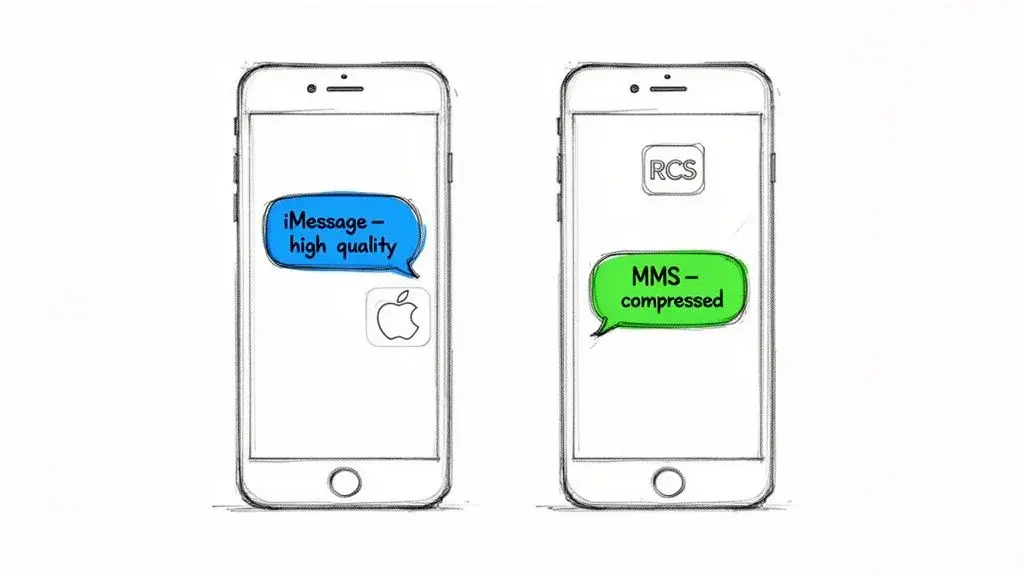
For anyone in the Apple ecosystem, sending a video from one iPhone to another is incredibly smooth. This is all thanks to iMessage. When you see that blue bubble, your video is traveling over the internet, not the old-school cellular network. This means iMessage can handle much larger files, preserving the high quality you expect.
But what happens when you send that same video to a friend on Android? That's when things get tricky.
Navigating the iPhone to Android Video Gap
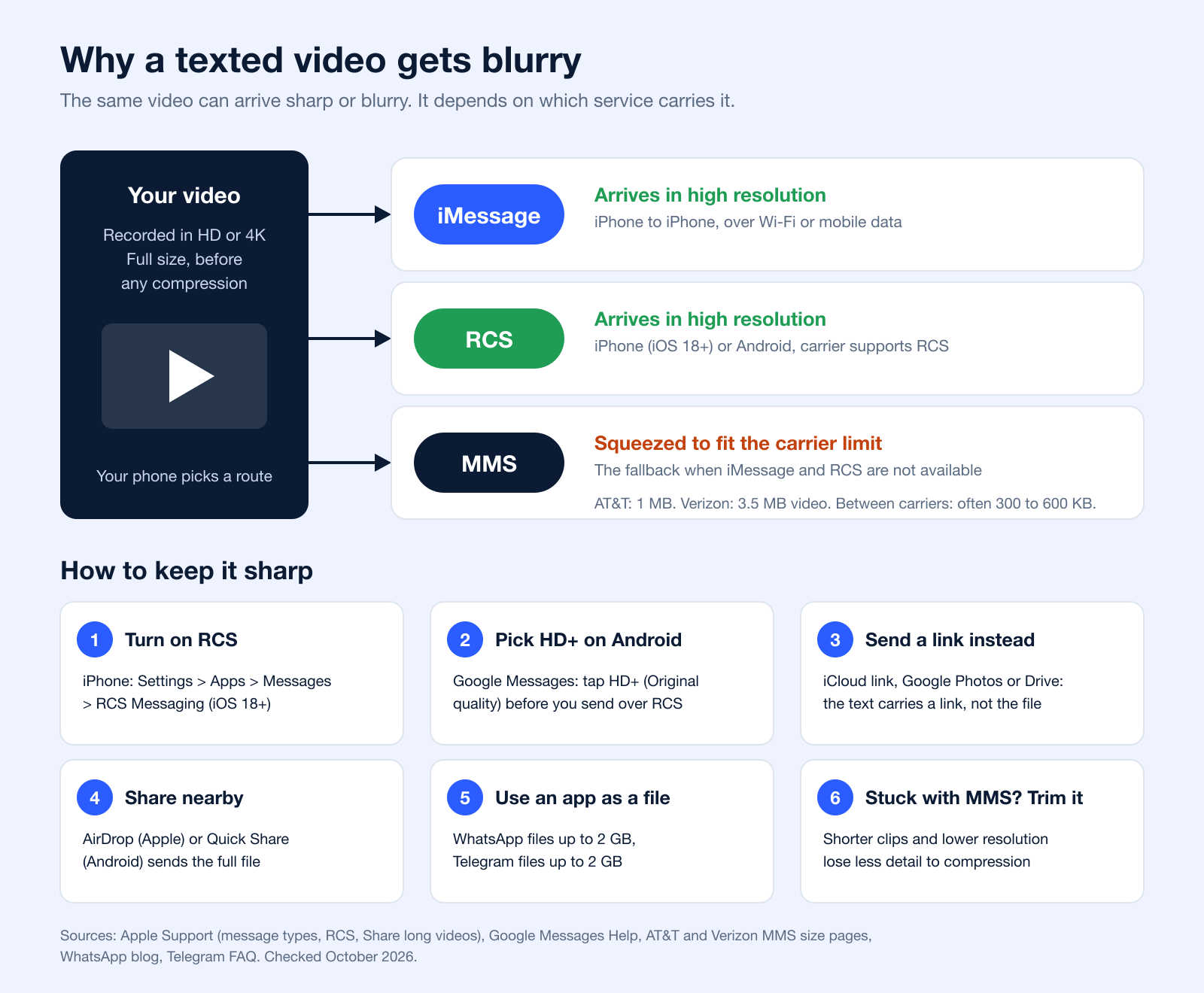
The moment your iPhone detects it's messaging a non-Apple device, it switches gears. The blue bubble vanishes, replaced by a green one. Since iOS 18, that green bubble can be RCS, which sends "high resolution photos and videos" to Android over Wi-Fi or mobile data (Apple), as long as both carriers support it. If RCS is off or unavailable, the message falls back to standard MMS.
MMS is where the trouble starts. MMS messages are bound by your mobile carrier's file size limits, which can be as low as 1 MB (AT&T). To meet that limit, your iPhone compresses your video, and a sharp HD recording can turn into a pixelated smudge. Apple notes that iPhone "may compress photo and video attachments when necessary."
Pro Tip: A green bubble alone does not tell you whether it is RCS or MMS. If the video arrives blurry, the conversation probably fell back to MMS. For any video where quality is a priority, sending a link is a much safer bet than relying on MMS.
Sending Videos on Android with Google Messages
Android users have been dealing with this MMS headache for years, especially when texting friends with iPhones. For a long time, any video sent from an Android phone was destined for the same low-quality fate.
Thankfully, that's changing. Rich Communication Services (RCS), which Google Messages calls "RCS chats", is the answer to iMessage for the Android world. When both phones have RCS on, your messages (and videos) are sent over Wi-Fi or mobile data. That now includes iPhones: Apple added RCS in iOS 18, and Apple's carrier list shows support at AT&T, T-Mobile, Verizon and many smaller US carriers. This avoids the old MMS limits and gives a high-quality sharing experience close to iMessage.
Key Settings to Check on Your Phone
Want to make sure you're set up for the best possible experience? It only takes a minute to double-check your settings.
- On iPhone: Go to
Settings > Apps > Messages(iOS 18 and later). You'll want to see that iMessage, RCS Messaging, Send as Text Message, and MMS Messaging are all on. This gives your phone the flexibility to use the best option available for every conversation (Apple). - On Android: Open Google Messages and go to
Messages settings > RCS chats(sometimes called "Chat features"). Look for a "Connected" status (Google). If you see it, you can send high-quality videos to other people who have RCS on, on Android or iPhone.
For businesses, this opens up some powerful new plays. Imagine sending a prospect a video text followed by a ringless voicemail. You can deliver a visual message and then reinforce it with a personal, non-intrusive audio drop. Strategies like ringless voicemail drops are perfect for this, letting you land your message right in their voicemail inbox without ever making their phone ring. It’s a powerful one-two punch to make sure your message is both seen and heard.
Mastering Video File Size and Compression
Ever tried to text a video, only to have it fail? Or worse, it sends, but arrives looking like a blurry, pixelated mess? You're not alone.
This is the most common roadblock when sending video through text. The culprit? Mobile carriers' MMS limits: 1 MB at AT&T, 3.5 MB for video at Verizon, and often 300 to 600 KB between carriers (Verizon). For the crisp HD video on your phone, that's next to nothing.
To even have a chance of sending, your phone has to aggressively compress the video on the fly. It strips out a ton of data, which is exactly why that beautiful video you shot ends up looking terrible on your friend's screen. Quality gets sacrificed to play by the carrier's rules.
Smart Compression vs. Sending a Link
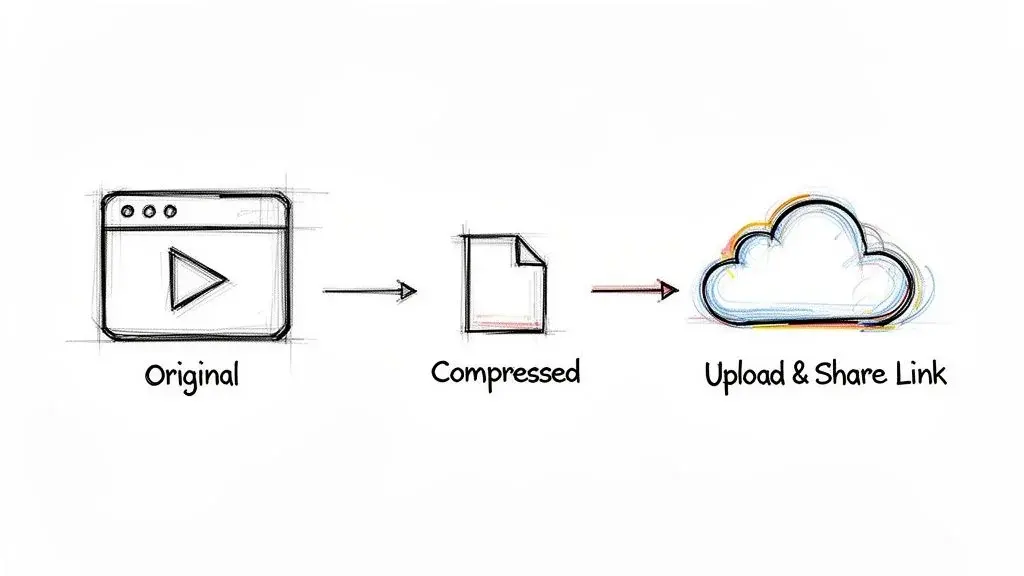
So, how do you get around this? You really have two choices: try to compress the video yourself, or just bypass the problem entirely by sending a link.
Compressing it yourself (by trimming the length or lowering the resolution) gives you a bit more control over the final quality than letting the carrier squeeze it for you. On iPhone, open the video in Photos, tap Edit and drag the ends of the frame viewer to trim it (Apple); for new recordings, you can pick HD instead of 4K in the Camera app (Apple). It's a decent option for a quick, personal video.
But for anyone serious about quality, especially businesses, the best strategy is to upload your video somewhere else and just text a link. This completely sidesteps MMS file size limits and guarantees your video is seen exactly as you intended. Frankly, for businesses, it's the only reliable way to go.
Sending a link ensures your message actually gets delivered and your video looks professional. It protects your brand and gives your audience a much better experience.
The Business Advantage of Link Shorteners and Tracking
This is where it gets powerful for businesses. When you send a link using a messaging platform like Broadcast, you unlock a whole other level of functionality.
Instead of a long, clunky URL, the platform automatically generates a short, clean link. This not only looks more professional but also saves you precious character space in your text message.
Even better, these links are trackable. You get access to a goldmine of data, including:
- Click-Through Rates: See exactly who clicked to watch your video.
- Viewer Engagement: Find out which contacts are most interested in your content.
- Campaign Performance: Measure the true ROI of your video marketing efforts.
This kind of data is absolutely crucial for dialing in your marketing strategy. For brands that want richer customer engagement and real performance analytics, sending video links by text beats sending large files that carriers compress.
With the flexibility of MMS, you can include text, video, audio, and more, all while breaking free from the 160-character limit of SMS. Business messaging providers publish their own caps on top of the carriers' limits; Twilio, for example, accepts MMS up to 5 MB and lists MP4 as fully supported across MMS, RCS and WhatsApp (Twilio media types).
For a deeper dive into the nuts and bolts of sending media through text, you might also find our guide on the difference between SMS and MMS messages helpful.
How to Send a Video in Full Quality
When MMS is the only route, or the video is too large for a text, these options keep the original quality. All of them were checked against the official help pages in October 2026.
| Option | Works with | How | Limit or catch | Source |
|---|---|---|---|---|
| iCloud link | Anyone with a browser | Photos > Share > Options > iCloud Link (iOS 26), then send the link by text | Link available for 30 days | Apple |
| Google Photos link | Anyone with a browser | Google Photos > select the video > Share > Create link | Anyone with the link can view it | |
| Google Drive link | Anyone with a browser | Share > General access > Anyone with the link > Copy link | Your name and email show as the owner | |
| RCS with HD+ | iPhone (iOS 18+) and Android with RCS on | Google Messages: tap HD+ (Original quality) before sending | Both carriers must support RCS | Google, Apple |
| AirDrop | Nearby iPhone, iPad, Mac | Photos > Share > AirDrop; Options > All Photos Data sends the original | Wi-Fi and Bluetooth on, nearby only | Apple |
| Quick Share | Nearby Android, Chromebook, some Windows PCs | Share > Quick Share > pick the device | Nearby only; recipient must accept | |
| Mail Drop | Any email address | Photos > Share > Mail | Up to 5 GB; 30 days to download | Apple |
| WhatsApp or Telegram | People who use the app | Send the video as a file (document) | Files up to 2 GB | WhatsApp, Telegram |
Sending From iPhone to Android in Full Quality
First check that RCS Messaging is on (Settings > Apps > Messages > RCS Messaging). If the other person's carrier supports RCS, the video goes in high resolution like any other chat. If it still arrives blurry, share a link: iCloud links work in any browser, and Google Photos or Drive links work just as well from an iPhone. Apple's own guide to sharing long videos recommends AirDrop, iCloud or Mail Drop for files that are too large for a text.
Sending From Android to iPhone in Full Quality
With RCS on both sides, pick HD+ in Google Messages and send as usual. Without RCS, Google Photos or Drive links are the simplest route. If a send over RCS fails, Google Messages can resend it as MMS or as an SMS with a link; Google warns that with the link option "your media could be accessible by a public link not controlled by Google" (Google).
Advanced Video Texting Strategies for Business Growth
Alright, you’ve mastered sending a quick video to a customer. Now what? It’s time to move beyond one-off messages and turn video texting into a real engine for your business.
This is where you shift from just sending a video to strategically using it in bigger campaigns. You’ll need a professional platform for this part, but it's what lets you scale up your efforts without losing that personal, one-on-one feel.
One of the most powerful tactics is personalized bulk MMS. Instead of blasting a generic video to your entire contact list, you can use merge tags to tailor the text for each person. A message like, "Hi [First Name], here's that demo you asked for!" feels incredibly direct and personal, and you'll see your engagement rates jump because of it.
Of course, this only works if you’ve segmented your audience. By grouping your contacts based on their interests, what they've bought, or where they are in your sales funnel, you can send video content that actually resonates and pushes them to act.
Weave Video Into Your Automated Campaigns
The real magic happens with automation. Imagine a new lead signs up on your website. Instead of just dumping them into a list, you can trigger an automated drip campaign that instantly sends them a welcome video via MMS.
From there, the follow-up is all hands-off. A sequence could look something like this:
- Day 3: A quick text with a video walking through a key product feature.
- Day 7: Send a link to a powerful video case study or customer testimonial.
- Day 14: An exclusive video offer to nudge them toward that first purchase.
These automated sequences handle all the follow-up for you, ensuring it’s consistent and perfectly timed. With a platform like Broadcast, you can orchestrate these entire campaigns, mixing SMS, MMS, and other channels for a full-court press.
Give Your Videos a Boost with Ringless Voicemail
If you really want to make your video campaigns pop, try pairing MMS with another channel. One combination worth testing is MMS and ringless voicemail.
Here's the play: you send a text with your video link. A few minutes later, you drop a pre-recorded voicemail that reinforces the same message. It's an incredibly effective one-two punch. They see the visual in their texts and hear your voice in their voicemail, all without the annoyance of a live call. For high-value leads or big announcements, this ringless voicemail drop strategy can seriously crank up your response rates.
Customers are already in their text inboxes: Americans exchanged nearly 2.2 trillion SMS and MMS messages in 2024, according to CTIA. Once people have opted in, a short video text is a natural way to stand out there.
Don't Forget Compliance and Analytics
As you start sending more video texts, two things become non-negotiable: compliance and analytics.
First, compliance. Professional platforms are critical here because they manage your opt-in and opt-out lists, making sure you only message people who have given you explicit permission. This isn't just about following the rules; it's about building trust and protecting your business. You can learn more about the rules of the road in our guide to SMS and MMS messaging.
Just as important are your analytics. Every video link you send should be trackable. You need to know your click-through rates and see how people are engaging with the video itself. This data is what separates guessing from knowing. It tells you which videos are hitting the mark and which contacts are truly engaged, letting you fine-tune your strategy for the best possible results. For the industry rules on consent, opt-outs and message content, see the CTIA Messaging Principles and Best Practices.
Your Top Video Texting Questions, Answered
Still have a few questions floating around about sending videos through text? No problem. Let's tackle the most common ones so you can send your next video without a hitch.
What Is the Best Video Format for Texting?
If you want to play it safe, .MP4 is the undisputed champion of compatibility.
It hits that sweet spot between decent quality and a manageable file size. This makes it the most dependable format, whether you're zipping a video over MMS on Android or through iMessage on an iPhone.
Honestly, when in doubt, just stick with .MP4. It's the best way to make sure your recipient doesn't run into any weird playback issues, and most phones and editing apps default to it anyway.
iPhones record in Apple formats and convert when needed: in the Photos share Options, "Most Compatible" converts files to JPEG or MOV (Apple). For business sends, MP4 is listed as fully supported across MMS, RCS and WhatsApp by messaging providers such as Twilio.
Can You Send a Video to Multiple People at Once?
Yep, you absolutely can. On your phone, you'd just create a group message and add everyone you want.
But here's the catch: the group uses the best service everyone supports. An all-iPhone group uses iMessage. In a group RCS chat (iOS 18 or later and Android), "everyone can send texts, high resolution photos and videos" (Apple). If someone lacks RCS, the group falls back to MMS and the video is compressed for everyone. A group SMS cannot carry videos at all.
For businesses trying to send a video to a big list, a professional platform is really the only way to do it right. You can send a high-quality video link using a bulk MMS service to a specific list of contacts, guaranteeing everyone gets a perfect viewing experience every single time.
Why Did My Video Fail to Send?
Nine times out of ten, this comes down to one thing: file size.
If the message goes as MMS and your video file is bigger than your carrier's limit (1 MB at AT&T, 3.5 MB for video at Verizon), it is compressed or the send fails. Verizon warns that a message over the other carrier's limit "may be rejected and won't reach the intended recipient" (Verizon). This happens all the time with longer videos or anything shot in high definition.
A few other culprits could be:
- A spotty cellular or Wi-Fi connection.
- MMS messaging isn't enabled in your phone's settings (double-check this!).
- The person you're sending it to has a device or plan that can't receive MMS messages.
For a step-by-step checklist when texts fail for other reasons, see why your text messages are not being delivered. On Android, Google also suggests checking your data connection and resetting APN settings to default when MMS will not send (Google).
How Do I Send a Video Through Text That Is Too Large?
Send a link instead of the file. On iPhone, share an iCloud link (iOS 26: Photos > Share > Options > iCloud Link) or use Mail Drop for files up to 5 GB; on any phone, a Google Photos or Google Drive link works. Nearby, AirDrop or Quick Share move the full file. See how to send a video in full quality for every option.
How Can I Compress a Video to Send It via Text Message?
Trim it first: on iPhone open it in Photos, tap Edit and drag the ends of the timeline (Apple); Android gallery apps have a similar trim tool. Shorter clips and lower resolution (HD instead of 4K) shrink the file the most. Your phone also compresses automatically when it sends over MMS, but trimming yourself loses less detail.
Can You Send a Video by SMS?
Not by plain SMS, which carries text only; Apple notes that group SMS messages "don't support multimedia attachments, like photos or videos" (Apple). When people say "SMS video", the video actually travels as MMS, RCS or iMessage. Learn more about the difference between SMS and MMS.
How Do I Forward a Video From a Text?
On iPhone, touch and hold the video bubble, tap More, select the messages, tap the forward arrow, add recipients and tap Send (Apple). In Google Messages, touch and hold the video and tap Forward (Google). Forwarding to an Android or non-RCS phone can send a compressed MMS copy, so share a link if quality matters.
Is a Video Sent by Text Private?
iMessage is end-to-end encrypted, and end-to-end encrypted RCS between iPhone (iOS 26.5) and Android is in beta with supported carriers. SMS and MMS are not end-to-end encrypted (Apple). More in is SMS encrypted?.
Can I Combine Video Texts with Other Messaging?
Absolutely. This is where you can get really creative with your outreach. A killer strategy is to pair a video MMS with a ringless voicemail.
Think about it: you can send a text with a link to your video and then, a little while later, follow up with a non-intrusive ringless voicemail drop to add a personal touch. This one-two punch is fantastic for engagement because it ensures your message is both seen and heard, without ever being disruptive.
Ready to turn your video messaging into a growth engine? With Broadcast, you can send personalized, trackable video campaigns at scale, integrate with the tools you already use, and pair your texts with powerful ringless voicemail drops. See how it works at broadcast.so.