You’ve probably been in this spot before. The event details are set, the venue is booked, and now the challenges begin. You need to invite people, track replies, answer questions, remind the late responders, and avoid spending the next week chasing everyone one by one.
That’s where Evite still earns its place. It takes the old paper-invite workflow and turns it into a single event page with invitations, guest tracking, and messaging in one place. For casual parties, family gatherings, showers, and many small business events, that’s enough to get the job done.
But if you’re asking how does Evite work, the useful answer isn’t just “you send an online invite and people RSVP.” The useful answer is how the system behaves in practice, where it helps, and where its communication gaps start to show. That matters a lot when attendance counts.
Every Evite feature, limit and price in this guide comes from Evite's own help center and evite.com (checked October 19, 2026). Jump to the seven creation steps, sending by text, pricing or the FAQ.
Why Modern Event Planning Starts Online
Event planning used to break down in the same places every time. Someone copied the wrong address. A guest said they “never got the invite.” Half the list replied by text, three people called, and someone’s spouse got left off because the spreadsheet wasn’t current.
Digital invitations fixed a lot of that. Evite describes itself as "the original digital invite" (Evite About page, checked October 19, 2026) and helped make online RSVP tracking normal instead of novel. Today it offers invitations with built-in RSVP tracking, free Event Pages for casual gatherings, digital greeting cards, SignUp Sheets and an annual Evite Pro subscription for frequent hosts.

What changed when invites went digital
The biggest improvement wasn’t just saving paper. It was centralizing the event conversation.
Instead of scattering details across texts, emails, and handwritten notes, Evite gives hosts one place to manage:
- Event details like date, time, and location
- Guest status so you can see who said yes, no, or maybe
- Updates when plans shift
- Ongoing coordination for things like supplies, food, or questions
That’s why it became such a default choice. For a birthday party, school event, office gathering, or reunion, it reduces the admin work immediately.
Practical rule: If your event has more than a handful of guests, a shared event page beats a text thread almost every time.
Where Evite fits best
Evite works best when the invitation itself is only part of the job. Most hosts don’t just need a pretty design. They need a workable system for collecting responses and keeping guests aligned.
That said, not every event has the same communication demands. A backyard party can survive with a simple email invite. A workshop, fundraiser, community event, or business open house often needs stronger follow-up than Evite handles by itself.
This is the pertinent observation. Evite is strong at organizing invitations. It’s less complete at driving attendance through structured, multi-channel follow-up.
The Core Evite Workflow From Creation to RSVP
At its core, Evite runs on a centralized event page. You create one invitation, attach the event details, add guests, and send it by email, by text, or through a shareable link. That setup is what makes the platform simple for hosts and familiar for guests, as Evite's guide on how to send an invitation describes.
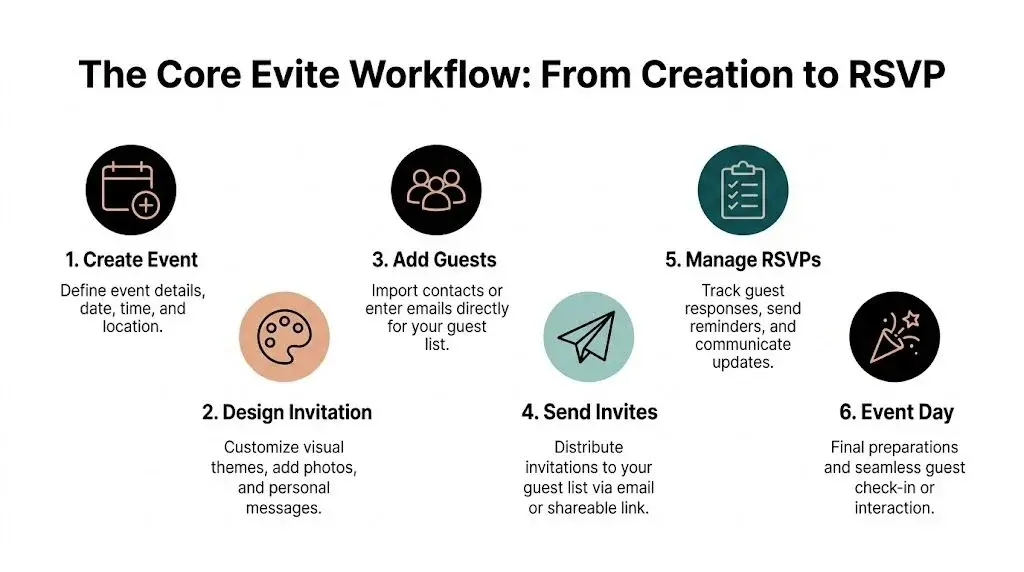
Creating the event
The process usually starts with a template. Evite offers free and premium invitation designs, and from there you fill in the practical details:
- Choose the occasion Birthday, holiday party, baby shower, dinner, graduation, corporate gathering, or something custom.
- Enter the basics Add the event title, time, date, location, and any short instructions guests need.
- Customize the page Depending on the event, you may add maps, polls, supply lists, or a message from the host.
If you're coordinating a more complex event, it helps to map logistics before you build the invite. Evite's built-in Event Sign-ups list lets guests claim food, drinks and supplies, so the "who brings what" part lives on the same page as the RSVPs.
Evite's seven steps to create and send
Evite's help center splits the process into seven steps (Create Invitation: Free or Premium, checked October 19, 2026):
- Choose your design. Browse by category or search, then click a design. Designs are labeled Free or Premium (look for the crown icon).
- Customize it. Edit the text, font and colors. Backgrounds, effects, envelopes, liners and stamps are Premium features.
- Add event details. Title, date, time, location and a host message, plus extras such as a map, a poll or Event Sign-ups.
- Choose gifting. Free invitations include suggested gifting links automatically; on Premium they are optional.
- Review. Check everything and make final edits.
- Add guests. Type email addresses or phone numbers, reuse a past guest list, search your address book, import Google contacts or upload an Excel file.
- Send. Click Finish & Send. For Premium, pick a package by guest count and pay before it goes out.
Drafts save automatically, and you can edit the details or add guests any time before the event date (Evite help).
Adding guests and choosing delivery
Evite gives you five ways to add guests on the Add Guests page: type email addresses or phone numbers, pull a past guest list, search your Evite address book, import Google contacts, or upload an Excel file (Evite help). Every phone number needs a name attached. That sounds minor, but it does matter: people are more likely to engage with an invite that feels personal and recognizable.
You can distribute the invitation in a few ways:
| Delivery method | Best use | Limitation |
|---|---|---|
| Standard guest lists and formal invites | Can be overlooked or filtered; check the Undelivered status on your guest list | |
| SMS | Fast outreach and mobile-heavy audiences | Only for US and Canada numbers; texts come from short code 296-94 |
| Shareable link | Flexible distribution through text, chat, or social | No read receipts; guests appear on your list only after they RSVP |
Sources: Send Invitation by Text, Shareable Link for Invitation, Premium vs. Free and Undelivered Status on support.evite.com. Avoid forwarding a personal invitation: Evite ties each one to a guest ID, so RSVPs from a forwarded copy are logged under the wrong name (Evite help).
If you need a more direct mobile-first approach, this guide on how to RSVP by text message is useful for thinking beyond email-only response collection.
What the guest sees
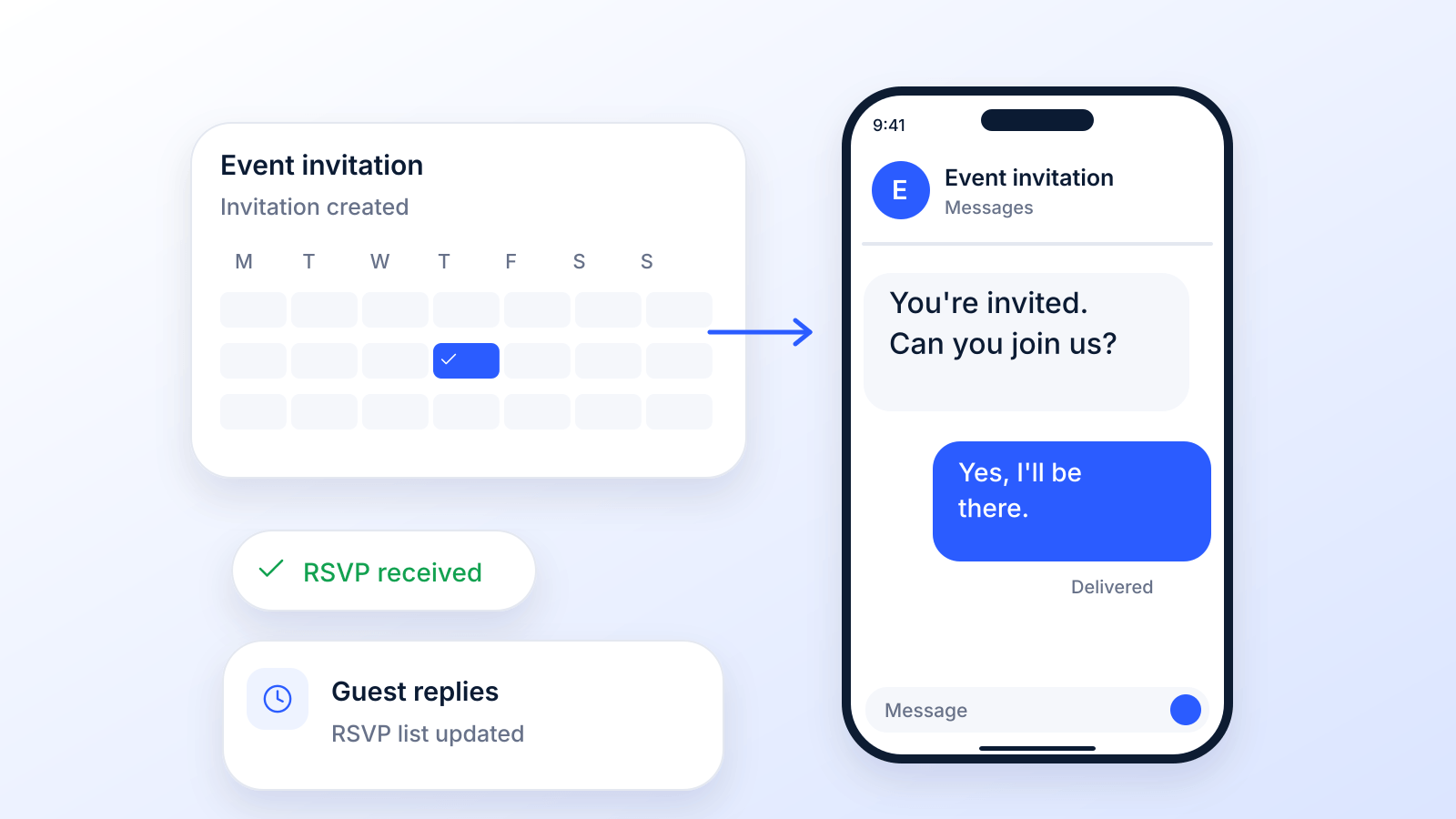
From the guest side, Evite is intentionally simple. They click the invite, land on the event page, read the details, and respond with Yes, Maybe, or No. No Evite account is needed to RSVP, and guests can come back to the same link to review updates or change their response any time before the event date (How to RSVP).
That simplicity is one of Evite’s strengths. It lowers the chance that guests abandon the process because they had to dig through a long email or hunt for details.
Short invitations tend to perform better than overloaded ones. If guests need to scroll through a wall of text before they can respond, some won’t bother.
How RSVP tracking works in Evite
Once the invitation is out, the Manage Event page is where you follow replies. These are the tracking tools Evite documents (checked October 19, 2026):
- Viewed status: shows by a guest's name once they open the invitation (Guest Viewed Status). Invitations sent by shareable link have no read receipts.
- Undelivered status: bounced email invitations appear at the top of the list in red, so you can fix the address or switch to a phone number (Undelivered Status).
- Party size: if you turn it on, guests add a headcount (optionally adults and children), and you can cap plus-ones at up to nine per guest (How to RSVP).
- Capacity limit: close RSVPs automatically once a set headcount is reached (Maximum Capacity).
- RSVP deadline: stop responses after a date and time; this one is a Premium feature (RSVP-By Feature).
- Export: download the guest list with names, contact details, RSVP status, party size and comments (Download Guest List).
Why the workflow works
The reason Evite still holds up is that it removes the fragmented parts of hosting. The invite, the response, and the event details all live in one place.
For practical use, that means:
- Less duplicate messaging
- Cleaner RSVP tracking
- Fewer “what time was it again?” questions
- Easier updates when plans change
It’s a strong base system. The next question is what happens after the invitation goes out, because that’s where event management becomes less about setup and more about guest behavior.
How to Send an Evite Via Text Message
Sending an Evite by text, step by step
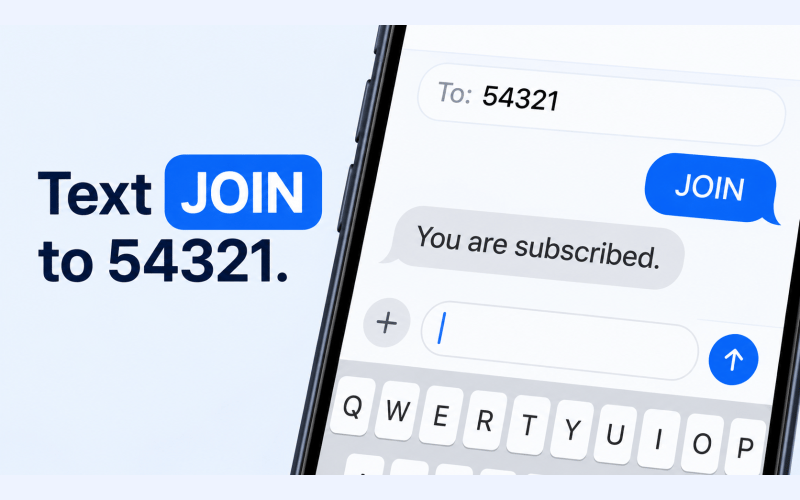
Yes, you can send an Evite by text. Evite sends it for you when you add guests by phone number, from a desktop, a mobile browser or the app (Send Invitation by Text, checked October 19, 2026):
- Log in, click your name or photo in the top right corner and select My Invitations.
- Find your event and click Add Guests (on a phone browser, tap + New Guest).
- Enter each guest's name and phone number, then click Add Guest.
- Click Send to [x] Guests. In the Evite app you can pick people from your phone contacts instead.
Three rules to know: text invitations work only for US and Canada numbers, every number needs a name, and the text arrives from short code 296-94. Tell guests to look for it; if a guest's plan blocks short-code texts, Evite suggests asking the carrier to enable them (Not Receiving Invitations).
The other route is your own text: copy the shareable link from Manage Event (not the URL in your browser bar, which is your host link) and paste it into a group chat or message. The rest of this section covers how to write that message so people tap it; for party-style wording, see these birthday invitation texts.
Good text invites are short, specific, and easy to act on. Bad ones sound like mass blasts, hide the value, or bury the RSVP link at the end of a cluttered paragraph.
The first decision is format. For many businesses, a plain SMS with a clean link is the safest choice because it loads quickly and keeps the recipient focused on one action. MMS can work well when the image adds context, such as a retail flyer, speaker headshot, or branded event card. If you plan to text the invitation image itself, here is how to send a picture by text message on iPhone and Android.
The anatomy of a strong evite text
Every effective invite message needs four parts.
- A personal opening Use the recipient’s name if your list supports it. Even a simple greeting makes the message feel intended, not dumped into a list.
- A reason to care Do not just say what the event is. Say why the person should attend.
- The logistics Include the core details people use to decide. Keep them concise.
- A direct CTA Your call to action should tell the reader exactly what to do next.
What to include and what to cut
Keep these elements:
- Name or audience cue so the invite feels relevant
- Event name and timing in plain language
- One clear link to RSVP or register
- A short benefit statement tied to the event
Cut these elements:
- Long backstory about the event
- Multiple links in one message
- Overwritten hype language
- Vague CTAs like “check this out”
A text invite should answer one question immediately. Why should I tap this now?
Example Text Message Evite Templates
| Event Type | Message Template |
|---|---|
| Webinar | Hi [FirstName], we’re hosting a live webinar on [topic] on [day] at [time]. Join us to learn [benefit]. Save your spot here: [link] |
| In-store event | Hi [FirstName], you’re invited to our in-store event on [date]. We’ll have [offer or attraction]. RSVP here so we can save your place: [link] |
| Customer appreciation night | Thanks for being a customer, [FirstName]. We’d love to see you at our appreciation event on [date] at [location]. RSVP here: [link] |
| Class or workshop | Hi [FirstName], registration is open for our [class/workshop name] on [date]. If you want hands-on help with [goal], grab your seat here: [link] |
| VIP sale preview | Hi [FirstName], you’re on our VIP list for early access to [event/sale] on [date]. Claim your invite here: [link] |
SMS versus MMS in practice
Use SMS when speed and clarity matter most. It is usually the better fit for registration-driven events.
Use MMS when the visual itself helps sell attendance. Examples include:
- Retail events with a flyer-style image
- Entertainment events with performer or venue visuals
- Community events where branding reinforces trust
Before sending, open your RSVP link on your own phone. Then test it on another device and mobile connection. If the page feels slow or cluttered, the message may get opened but the response still gets lost.
Managing Guests and Communications Inside Evite
Sending the invitation is the easy part. The actual work starts when replies come in slowly, some guests open the event but don’t respond, and a few stay parked on “Maybe” until the last minute.
Evite gives hosts a dashboard-style view of guest activity, and that’s more useful than many people realize. You’re not just looking at a final RSVP count. You’re watching behavior unfold while the event is still salvageable.
What to watch after sending
A good host doesn’t treat every non-response the same. Inside Evite, you can usually separate guests into practical groups:
- Opened but didn’t reply These people saw the invite. They may just need a short nudge.
- Marked Maybe They’re engaged, but uncertain. A reminder closer to the event often matters more than an early follow-up.
- Replied Yes This group needs confirmation details, not repeated invitation prompts.
- No visible engagement These guests may have missed the invite entirely or ignored the channel you used.
That distinction helps you avoid the classic mistake of blasting the same message to everyone.
How to use the messaging tools well
Evite’s built-in messages work best for event-specific updates. Use them for short, useful communication:
- Weather changes for outdoor events
- Parking notes for hard-to-find venues
- What to bring reminders
- Time adjustments if the schedule shifts
Evite documents no cap on messages, lets you send to everyone or only to attending, declined or not-yet-replied guests, and delivers each message individually, so nobody can reply-all (Send a Message to Guests, checked October 19, 2026).
If you're planning seating for a wedding or formal dinner, export the guest list once replies settle: the file includes each guest's RSVP status, party size and comments, which saves a lot of reshuffling in whatever seating tool you use.
For text-based delivery ideas, see how to send an Evite by text above and these ready-to-send birthday invitation texts.
Guests who view an invite but don’t reply aren’t always uninterested. Often they mean to respond later and forget.
Where internal communication starts to weaken
Evite is good at managing conversation inside the event page. It’s weaker when you need structured follow-up outside that environment.
Three problems come up often:
| Situation | Evite handles it well | Evite struggles |
|---|---|---|
| Basic reminders | Yes: one automatic reminder 2 days before the event (or the RSVP deadline), up to 5 scheduled | Reminder text can't be customized; Yes and Maybe guests get it by email only |
| Segmented outreach | Messages can target everyone, attending, declined or not-replied guests | Groups are limited to RSVP status |
| Cross-system workflows | Guest list export to a file | The help center documents no CRM, Zapier or API integration |
Sources: Invitation Reminder, Send a Message to Guests, Download Guest List and the help center index. Reminders go to everyone except guests who answered Not Attending; Not Replied guests get them by email or text, matching how they were invited. If you want reminder timing and wording fully under your control, here is how automated text message reminders work.
For personal events, that may not matter. For professional events, lead nurturing, community programs, or attendance-sensitive workshops, it matters a lot. You may know who hasn’t responded, but getting that data to trigger the right reminder is a different challenge.
Unlocking Evite's Premium and Advanced Features
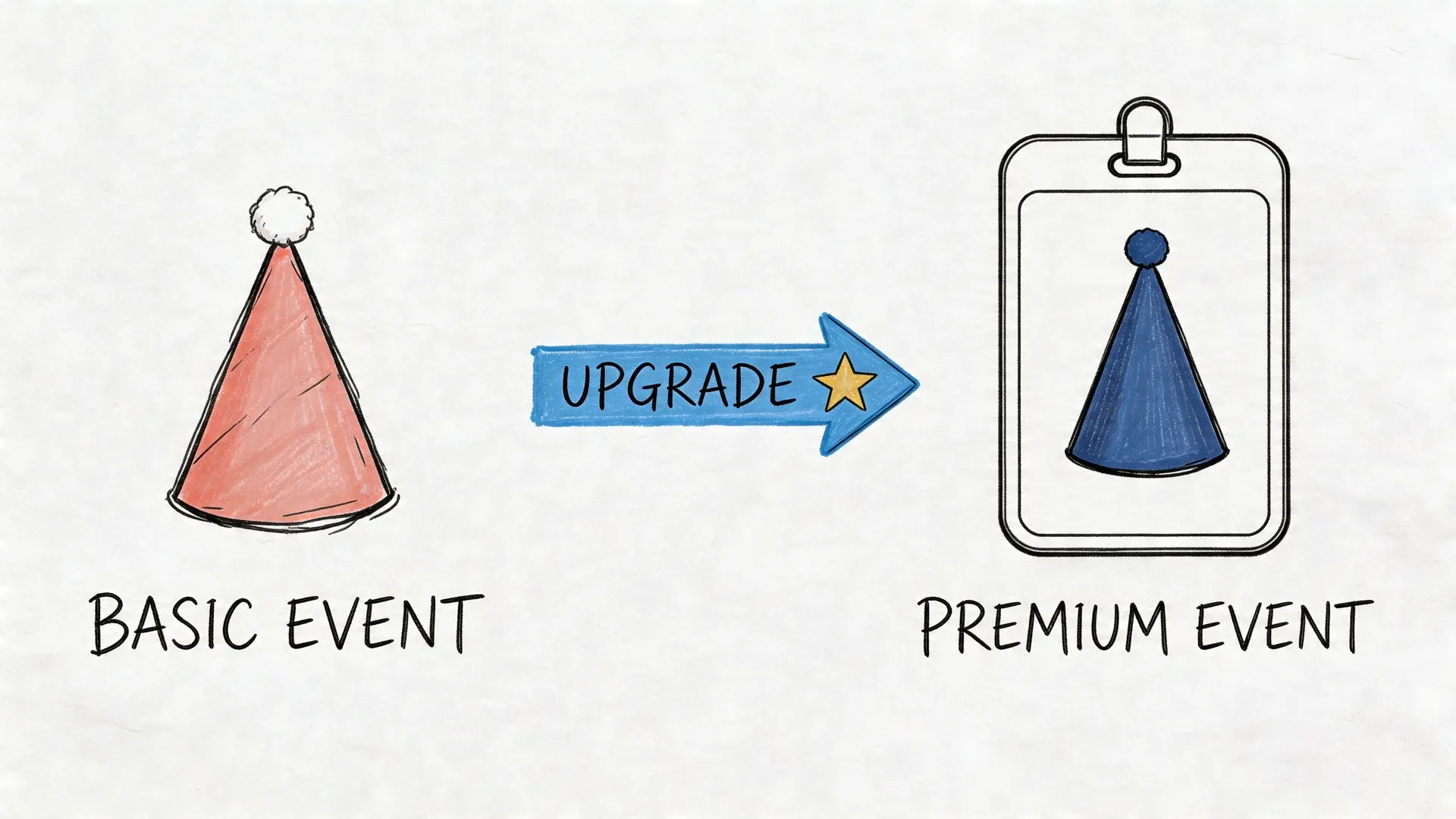
Free Evite is enough for many casual events. If you’re inviting friends to a cookout or planning a simple birthday, the core workflow usually covers what you need. The upgrade becomes worth discussing when presentation, guest experience, or event complexity starts to matter more.
When free is fine and when it isn’t
If the event is informal, guests usually won’t care about a lightly commercialized invite experience. But some events lose credibility fast when the invitation feels cluttered or salesy.
Premium starts to make more sense for:
- Corporate events where branding and tone matter
- Weddings and showers where aesthetics are part of the experience
- Client-facing gatherings where presentation affects trust
- Larger or more layered events that need more polished coordination
The free version gets the logistics across. The paid version does a better job supporting a polished first impression.
Features that actually matter
Not every premium feature is equally useful. The ones that change real hosting outcomes are usually these:
Ad-free invitations
This is the clearest upgrade for professional use. If you’re sending a business invite, sponsor event invitation, or formal celebration, an ad-free page looks more intentional and less transactional.
Better design choices
Premium templates are useful when the invitation is part of the event’s tone. A retirement dinner, fundraiser, or formal reception benefits from cleaner visual framing than a generic casual template.
Polls and lists
These tools are underrated. Polls help when guests need to choose between options such as meal preferences or preferred times; guests answer when they RSVP. Event Sign-ups ("what to bring" lists) are practical for potlucks, team celebrations, and shared-host events where everyone contributes something. Neither one appears in Evite's list of Premium upgrades (Invitation Pricing, checked October 19, 2026), so you can use them on a free design too.
The best advanced feature is the one that cuts down follow-up messages. If a poll or list prevents ten separate guest questions, it’s doing real work.
How to decide if upgrading is worth it
A simple way to decide is to judge the event on three criteria:
| Question | If the answer is yes | Premium value |
|---|---|---|
| Does appearance affect credibility? | Business, wedding, formal event | High |
| Do guests need to coordinate choices or supplies? | Potluck, catered event, group outing | Moderate to high |
| Would ads feel out of place? | Client or professional audience | High |
If all three are no, free Evite is usually enough.
If one or more are yes, upgrading can remove friction you’d otherwise try to solve manually. The mistake is assuming premium turns Evite into a complete communication system. It doesn’t. It improves the invitation experience. It doesn’t solve every attendance and follow-up problem on its own.
Evite Pricing: Free vs Premium in 2026
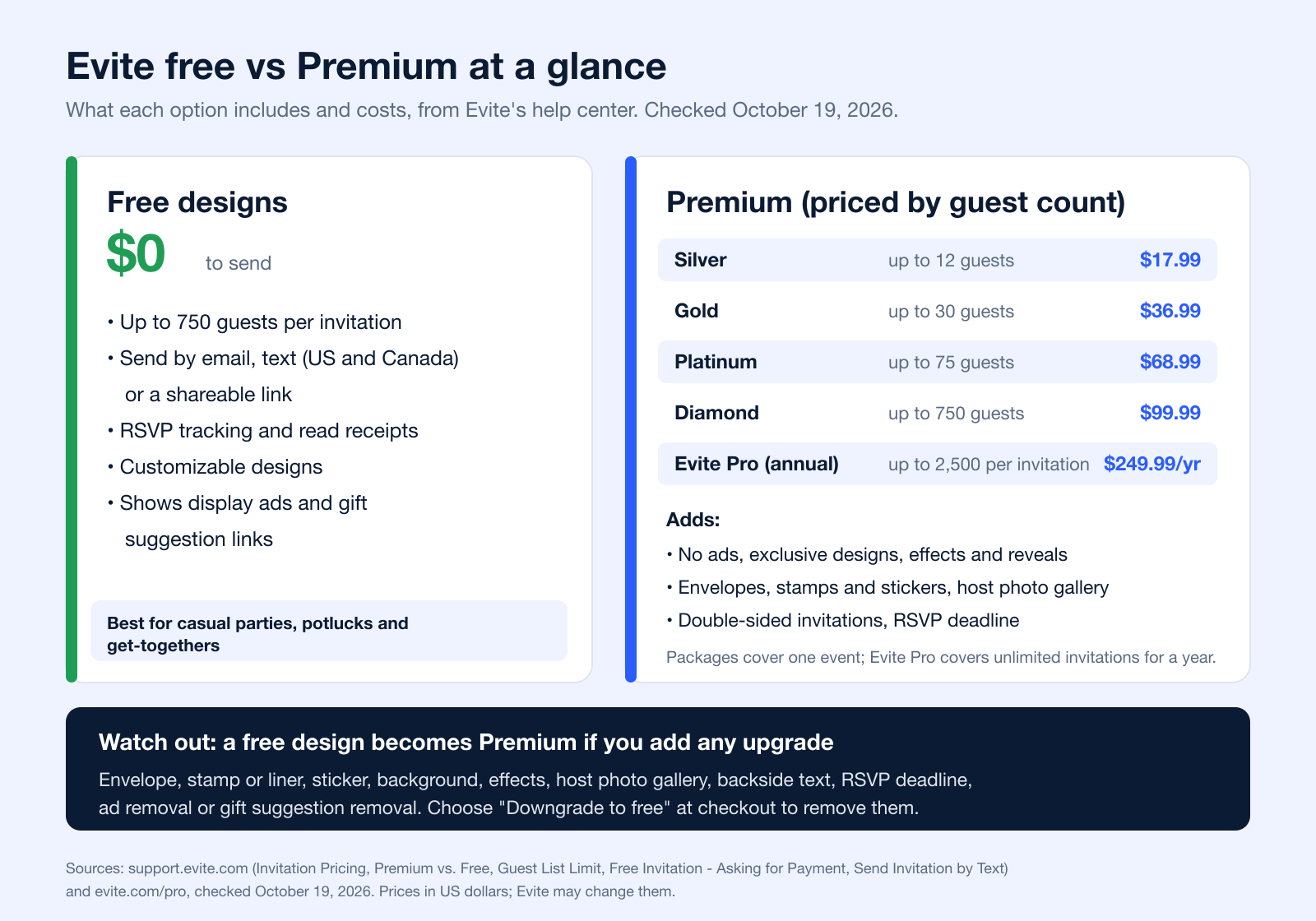
Evite is free for designs labeled Free, as long as you don't add a Premium upgrade. Premium designs always carry a charge based on the size of your guest list (Invitation Pricing, checked October 19, 2026). Prices are in US dollars and can change, so confirm them at checkout.
Evite packages and guest limits
| Option | Guests | Price | Source |
|---|---|---|---|
| Free design | Up to 750 | $0 | Guest List Limit |
| Silver | Up to 12 | $17.99 | Invitation Pricing |
| Gold | Up to 30 | $36.99 | Invitation Pricing |
| Platinum | Up to 75 | $68.99 | Invitation Pricing |
| Diamond | Up to 750 | $99.99 | Invitation Pricing |
| Evite Pro (annual subscription) | Up to 2,500 per invitation | $249.99 a year | evite.com/pro |
Packages cover a single event and can't be moved to another invitation. Evite Pro is the annual option for hosts who send three or more events a year and adds a school or business logo and a co-host (Evite Pro). For a casual gathering, Evite's Event Pages are also completely free for up to 750 guests.
What free includes and what Premium adds
| Feature | Free | Premium |
|---|---|---|
| Customizable designs | Yes | Yes |
| Read receipts (not for shareable-link invites) | Yes | Yes |
| Shareable link | Yes | Yes |
| No ads | No | Yes |
| Animated effects and reveals | No | Yes |
| Exclusive designs | No | Yes |
| Envelopes, stamps and stickers | No | Yes |
| Host photo gallery | No | Yes |
| Option to remove gift guides | No | Yes |
| Double-sided invitations | No | Yes |
Source: Premium vs. Free on support.evite.com (checked October 19, 2026).
Why a free Evite asks for payment
If a free design suddenly asks for payment, an upgrade was added along the way. Any of these turns a free design into Premium (Free Invitation: Asking for Payment):
- Envelope, stamp or liner
- Sticker or background
- Effects and reveals
- Host photo gallery
- Backside text
- RSVP By date (deadline)
- Ad removal
- Gifting suggestions removal
To send it for free, choose Downgrade to free on the checkout page; the upgrades are removed and the invitation goes back to the free version.
Beyond Evite Proactively Boosting Attendance and Engagement
Experienced organizers stop treating the invite as the whole system.
Evite is effective at creating an event page and collecting responses, but its help center (checked October 19, 2026) documents no Zapier connection, API or CRM sync. Its reminders are fixed in wording, and getting RSVP activity to trigger follow-up messages in other systems means exporting the guest list and working from the file. That is a real workflow gap for teams whose events depend on turnout.

Why email-only event communication falls short
Email is fine for the first invitation. It’s often weak for reminders.
People miss inbox messages for ordinary reasons. The invite lands in promotions, gets buried, or is opened at the wrong moment and forgotten. That doesn’t mean the guest wasn’t interested. It means your communication relied on a single channel.
For attendance-sensitive events, a better approach is layered communication:
- Use the invitation page for details and RSVP
- Use text for short reminders
- Use ringless voicemail for warm, personal follow-up
- Use voice broadcasting for urgent updates
That approach doesn’t replace Evite. It supports it.
Where ringless voicemail fits
Ringless voicemail is especially useful when you want a more human touch without forcing a live phone call. Instead of ringing the guest’s phone, the message is delivered directly to voicemail. That makes it practical for reminder campaigns, event confirmations, and last-mile attendance nudges.
It works well for situations like:
| Event type | Best message style | Why it works |
|---|---|---|
| Private events | Friendly host reminder | Feels personal without pressure |
| Workshops or classes | Brief reminder with start time | Easy to hear and act on |
| Community events | Encouraging attendance message | Reaches people who ignore email |
| Last-minute changes | Fast voice update | Clearer than a long text |
A voice message can do something email often can’t. It carries tone. That matters when you want guests to feel personally expected, not mechanically reminded.
A practical multi-channel workflow
For professional-level attendance management, the workflow usually looks more like this:
- Send the Evite first Let the event page handle the invitation and RSVP collection.
- Identify non-responders and maybes These are your follow-up segments.
- Send a short text reminder Keep it focused on action. Confirm, decline, or review details.
- Use ringless voicemail for key attendees Good for VIPs, registrants, prospects, members, or community participants.
- Reserve voice broadcasting for urgent updates Venue changes, weather issues, schedule shifts, or same-day notices.
If you’re actively trying to improve turnout, this guide on how to increase event attendance is a strong companion to the basic Evite workflow.
Email collects RSVPs. Multi-channel follow-up drives actual attendance.
The practical lesson is simple. Evite helps people say they’re coming. Strong messaging systems help them show up.
Common Evite Problems and Their Solutions
Most Evite problems aren’t technical disasters. They’re communication failures in disguise. The fix is usually less about clicking the right button and more about choosing the right backup method.
Invitations aren’t getting seen
If guests say they never received the invitation, don’t keep resending the same way and hope for a different outcome.
What to do instead:
- Use the shareable link and send it through your own text or email
- Ask key guests to check spam or junk folders
- Keep the invitation text short so the important details are obvious fast
Evite's own checklist adds a few more: guests should add info@mailva.evite.com and evite@mailva.evite.com to their safe senders, school and corporate addresses may need IT to allow them, and you can resend to one guest at a time from Manage Event > View Guest List (Not Receiving Invitations, How to Send Invitation).
For important events, always have a second channel ready.
Guests aren’t comfortable with email invites
Some guests won’t engage well with email-based invitations. That may be because they’re less tech-savvy, they check email rarely, or they respond faster to text and voice.
Practical workaround:
- Send the Evite link by text
- Call or leave a voicemail for older relatives or priority guests
- Ask one family member or team lead to help collect responses from less technical attendees
This keeps the event page as the system of record while adapting the communication channel to the guest.
The event needs stronger compliance controls
Business users need to be careful. Evite's text invitations are a host-to-guest feature sent from its short code 296-94, and its help center does not describe consent records, double opt-in or Do Not Call tools for business marketing (Evite help, checked October 19, 2026). That matters if you're contacting patients, leads, or large business audiences. Under the Telephone Consumer Protection Act, damages are $500 per violation and a court can triple them (up to $1,500) if the violation is willful or knowing (47 U.S.C. 227(b)(3)), which makes casual invite workflows risky for regulated or high-volume outreach. This is general information, not legal advice.
The built-in workflow isn’t enough for follow-up
Evite is fine for invitation management. It’s not built like a full outbound communication system.
If attendance really matters, the solution is usually to:
- Keep Evite for invitation pages and RSVP handling
- Move reminders to a dedicated SMS, ringless voicemail, or voice workflow
- Separate personal event use from regulated or promotional outreach
That split keeps your invitation experience simple without forcing Evite to do jobs it wasn’t built to handle.
Frequently Asked Questions About Using Evite
Can guests see each other on Evite
Only if the host allows it. Hosts can make the guest list private at any time, before or after sending; then guests see only their own RSVP. Evite always keeps guests' email addresses and phone numbers private (Hide Guest List).
Is Evite good for business events
It can work for lightweight business events where the main need is a clean invite and RSVP page; Evite has business templates, and Evite Pro adds a business logo and up to 2,500 guests per invitation (Evite Pro). It's less suitable when you need compliant texting, automation, deeper segmentation, or CRM-connected follow-up.
What’s the difference between free and premium
The free version is good for straightforward hosting: up to 750 guests, RSVP tracking, read receipts and a shareable link, with ads and gift suggestions on the invitation. Premium removes the ads and adds exclusive designs, effects, envelopes and stamps, a host photo gallery, double-sided invitations and an RSVP deadline (Premium vs. Free). Polls and Event Sign-ups are not Premium upgrades.
How do you include older or less technical guests
Use Evite as the central event page, then deliver the link through the channel that fits the person. For some guests that’s email. For others it’s a text message or a quick call. If needed, collect their response manually and update your planning records from there.
Is Evite enough on its own
For many personal events, yes. For professional events or attendance-critical campaigns, not usually. The platform handles invitations well. It doesn’t fully handle the follow-up system around them.
How are Evite invitations sent?
By email, by text, or through a shareable link. Evite sends email and text invitations for you when you add guests by email address or phone number; texts go to US and Canada numbers only and come from short code 296-94. The shareable link can go anywhere: a group chat, social media or your own email (How to Send Invitation).
How much does it cost to use Evite?
Free designs cost nothing to send. Premium is priced by guest count: Silver $17.99 (up to 12 guests), Gold $36.99 (up to 30), Platinum $68.99 (up to 75) and Diamond $99.99 (up to 750). Evite Pro is $249.99 a year for unlimited invitations of up to 2,500 guests each (Invitation Pricing, checked October 19, 2026).
Is Evite really free?
Yes, for designs labeled Free, as long as you don't add an upgrade. Adding an envelope, stamp, background, effects, an RSVP deadline or ad removal turns the invitation into Premium; "Downgrade to free" at checkout removes them. Free invitations show ads and suggested gifting links (Evite help).
Is Evite free for 100 guests?
Yes. Free invitations support up to 750 guests (Guest List Limit). If you choose a Premium design for 100 guests, the package that covers it is Diamond (up to 750 guests, $99.99), because Platinum stops at 75.
Can you send an Evite by text?
Yes. Add guests by name and phone number and Evite texts the invitation from short code 296-94 (US and Canada numbers only), or paste your shareable link into your own text. See the steps above.
Do guests need an Evite account to RSVP?
No. The invitation link is all they need, and they can change their answer any time before the event date (How to RSVP).
Does Evite show who opened the invitation?
Yes. "Viewed" appears next to a guest's name once they open it (Guest Viewed Status). Invitations sent through the shareable link have no read receipts.
Does Evite send reminders?
Yes. By default it sends one reminder 2 days before the event (or before the RSVP deadline), and you can schedule up to 5. The reminder text can't be customized; use Send Message for a personal note (Invitation Reminder).
If you want the simplicity of Evite plus stronger reminder and follow-up tools, Broadcast helps you add SMS, voice broadcasting, and ringless voicemail to your event communication. That’s useful when you need better attendance, cleaner automation, or compliant outreach for business and healthcare use cases.